
Free Google Ads Cost Calculator
Running Google Ads can feel like gambling when you’re not sure how much to spend or what kind of return to expect. The good news? You don’t need expensive software or fancy calculators to forecast your ad costs — just a simple Excel sheet can do the trick.
In this post, I’ll walk you through how to create your own Google Ads Cost Calculator using Excel, completely free. Whether you’re a freelancer, small business owner, or digital marketer just getting started, this guide will give you clarity, control, and confidence over your ad spend.
Why Do You Need a Google Ads Cost Calculator?
Before you jump into creating the calculator, let’s get something straight: Google Ads is not magic. You can’t just throw money at it and expect leads to roll in overnight. Like any tool, it performs best when backed by data and planning.
Here’s what a cost calculator can help you figure out:
- How much you’ll likely spend each month
- The cost per click (CPC)
- How many clicks you’ll get with your budget
- How many leads or sales you could expect
- Your break-even point or ROI
Let’s say you’re planning to run ads for a coaching service and you want 10 new clients this month. Wouldn’t it be amazing to know how many clicks, impressions, or dollars it might take to reach that goal? That’s where this spreadsheet comes in.
Step-by-Step: Create Your Google Ads Cost Calculator in Excel
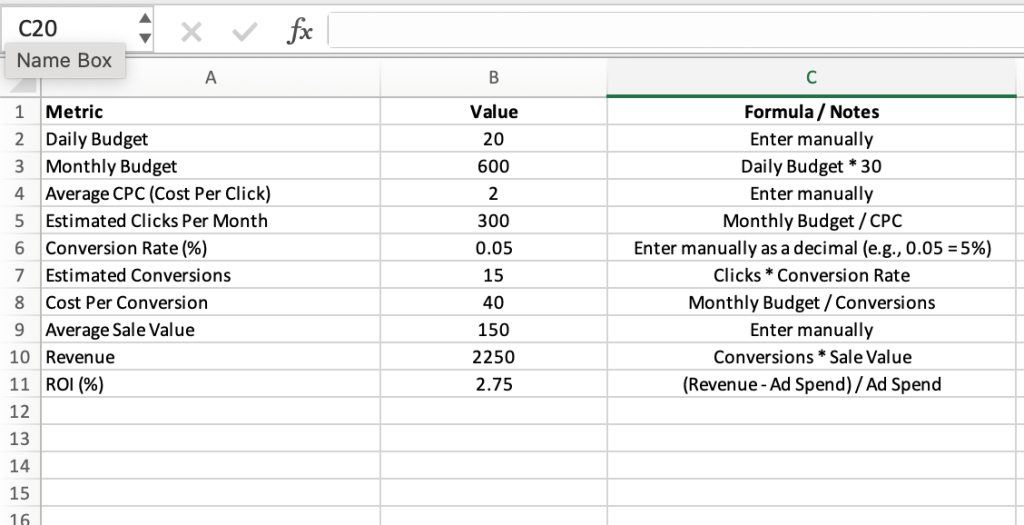
Here’s a simple but powerful Google Ads Cost Calculator template you can create using Excel or Google Sheets. It includes the essential metrics to help you forecast and optimize your campaigns.
Step 1: Open a Blank Spreadsheet
Use either Microsoft Excel or Google Sheets—both work great. Title it something like “Google Ads Cost Calculator.”
Step 2: Set Up These Headings (in Column A)
Type the following labels down column A, starting from A1:
- Daily Budget
- Monthly Budget
- Average CPC (Cost Per Click)
- Estimated Clicks Per Month
- Conversion Rate (%)
- Estimated Conversions
- Cost Per Conversion
- Average Sale Value
- Revenue
- ROI (%)
- Now, let’s input formulas and sample data.
Step 3: Add Formulas and Example Values
You can plug in your own numbers, but here’s an example to help you understand how it works:
| Metric | Example Input | Formula (in Excel) |
|---|---|---|
| Daily Budget | $20 | Manual Input |
| Monthly Budget | =B1*30 | =B1*30 |
| Average CPC | $2.00 | Manual Input |
| Estimated Clicks | =B2/B3 | Monthly Budget / CPC |
| Conversion Rate (%) | 5% | Manual Input |
| Estimated Conversions | =B4*B5 | Clicks * Conversion Rate |
| Cost Per Conversion | =B2/B6 | Monthly Budget / Conversions |
| Average Sale Value | $150 | Manual Input |
| Revenue | =B6*B8 | Conversions * Sale Value |
| ROI (%) | =(B9-B2)/B2 | (Revenue – Ad Spend) / Ad Spend |
With the above example:
- You spend $600/month
- You get 300 clicks
- 5% convert → 15 new customers
- Each customer costs you $40 in ad spend
- You earn $150 per customer → $2,250 total
- ROI = 275%
Boom! Now you know your ad spend is working—or not.
What Do These Numbers Mean?
Let’s break down some of these terms if you’re new to Google Ads:
1. Daily Budget
This is how much you’re willing to spend each day. Google won’t charge you more than this (on average).
2. CPC (Cost Per Click)
This is how much each click on your ad costs. It varies by industry—for example:
- Legal: $10–$50 per click
- Retail: $0.50–$2 per click
- Coaching: $2–$5 per click
You can find average CPCs in your Google Ads dashboard or tools like Keyword Planner.
3. Conversion Rate
This is the percentage of people who clicked your ad and actually took action—like booking a call, signing up, or buying.
A good average to start with is 3-5%, but that depends on your landing page, offer, and industry.
4. Cost Per Conversion
This tells you how much it costs to get one lead or customer. Lower is better, obviously.
5. ROI (Return on Investment)
This is the most important metric. If your ROI is negative, you’re losing money. If it’s positive, you’re in business.
Pro Tips for Maximizing ROI
- Improve your landing page: Even small design changes can increase your conversion rate.
- Use negative keywords: These prevent your ads from showing for irrelevant searches, saving you money.
- Target the right audience: Don’t just throw wide nets — aim your ads at people actively searching for what you offer.
- Start small and scale: Test $10–$20/day campaigns first, then increase once you see positive returns.
Feeling Overwhelmed? You’re Not Alone
Google Ads can feel intimidating at first — you’re dealing with acronyms, numbers, and an endless list of settings. But when you break it down into this simple Excel calculator, things become a lot clearer.
A client of mine once came to me spending $1,000/month with zero results. We used a basic spreadsheet like this, pinpointed a super high CPC and poor conversion rate, and made some changes.
Within 30 days, they were converting at 7%, and their ROI flipped from -30% to +190%.
No fancy tools. Just numbers. A plan. And a Google Sheet.
Final Thoughts
Running ads without knowing your numbers is like flying blind. You might get lucky — but chances are, you’ll crash.
With this free Google Ads Cost Calculator, you get visibility, control, and peace of mind. You’ll stop wasting money and start making smarter, data-driven decisions.
So go ahead — open that spreadsheet and start plugging in the numbers. Your future marketing self will thank you.
Optimize Your Paid Ads with the Free Google Ads Cost Calculator by Banch Marketing
Banch Marketing’s Free Google Ads Cost Calculator empowers businesses to not only estimate their ad spend but also enhance campaign performance and improve Click-Through Rates (CTR).
By breaking down key metrics like estimated impressions, clicks, and cost-per-click (CPC), the calculator provides actionable insights to fine-tune your ad strategy. Start optimizing your paid ads today—visit Banch Marketing and use the calculator to make every click count.

Free Google Ads Cost Calculator Guide
Other Services
 Direct Email Marketing vs. Email Automation
Email Marketing Tactics That Scale Revenue Fast
Digital Ads
Direct Email Marketing vs. Email Automation
Email Marketing Tactics That Scale Revenue Fast
Digital Ads
 Digital Ads

 Email Marketing
 Email Marketing

 Ecommerce
 Ecommerce